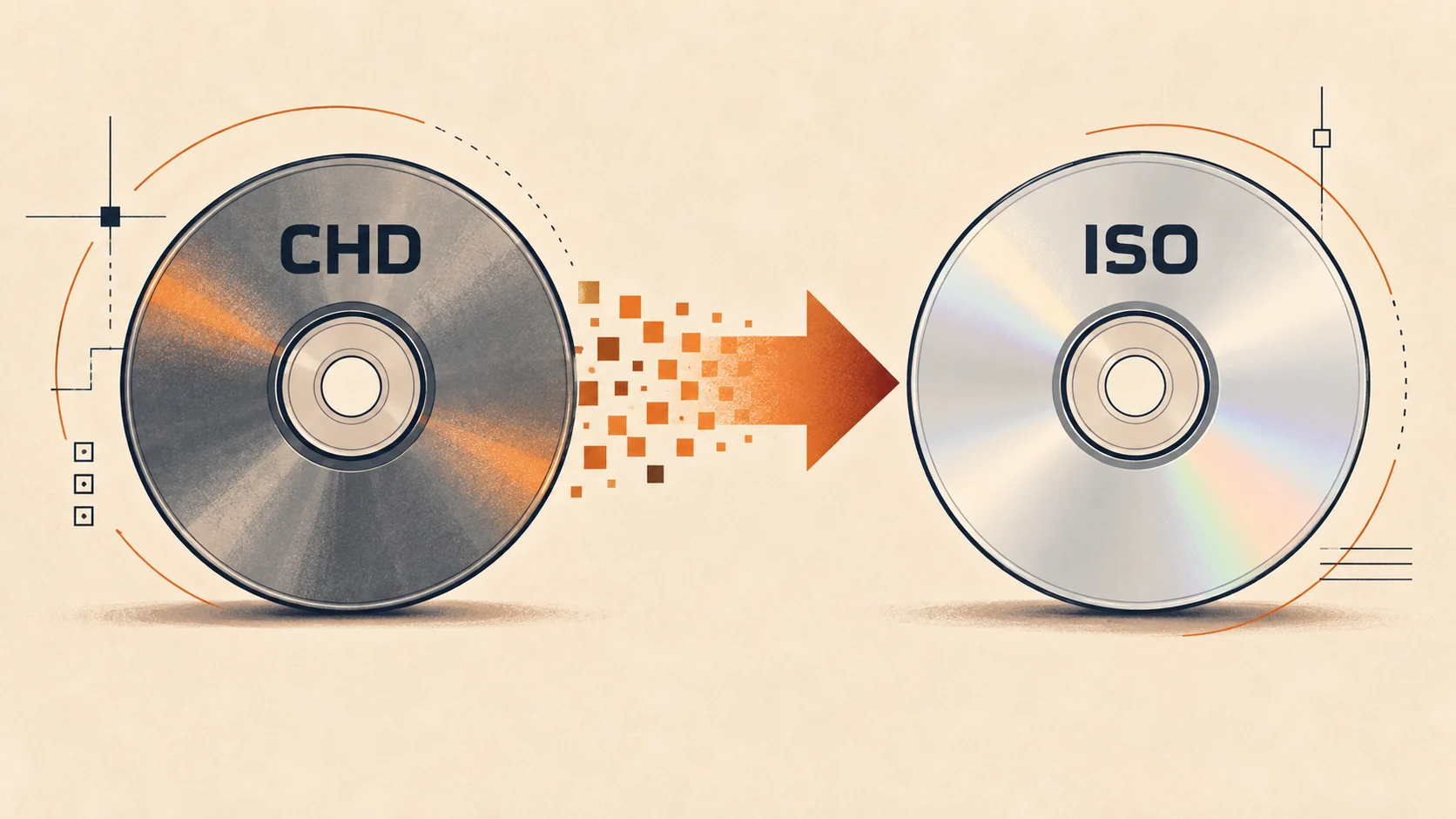
RVZ to ISO for Nintendont: Complete Setup Guide
Convert RVZ to ISO for Nintendont online, then place your own GameCube dump in the correct folder. Includes naming, storage, verification, and fixes.
Nintendont does not list RVZ as a supported GameCube image format, so convert your authorized RVZ to ISO first with our online RVZ to ISO converter. Then put the ISO in the /games/ structure documented by Nintendont, using game.iso for disc one and disc2.iso for a second disc. Conversion solves the container mismatch; the folder and filename rules make the result discoverable on the Wii or Wii U vWii setup.
Convert the RVZ to ISO online first
Open the RVZ to ISO converter on a computer or mobile device with access to the file. Confirm RVZ → ISO, select one .rvz image, and start the upload. The product accepts RVZ input up to 10 GB and sends it in 64 MB parts before the isolated server-side conversion begins.
Keep the page open until the upload completes. Paid jobs are settled before conversion starts, and the job then moves through queued and converting states without requiring Dolphin on the local device. When the ISO is ready, download it from the private result page before the 24-hour result window expires.
Save the ISO to a normal local disk first rather than downloading directly into a partially prepared console drive. Check the output and keep the original RVZ until Nintendont successfully sees and starts the game. A format conversion cannot fix a damaged source image, so deleting the source before validation adds avoidable risk.
Why Nintendont needs a different format
RVZ is Dolphin's lossless compressed disc-image format for GameCube and Wii data. Current Dolphin versions can read it directly, but Nintendont is a separate Wii homebrew project with its own documented inputs. Its official README lists 1:1 and shrunken .GCM/.ISO, extracted FST, and uLoader CISO images; it does not list RVZ.
ISO is the direct target for this product because it restores the standard GameCube disc image expected by Nintendont's installation examples. The change does not improve graphics, region compatibility, or game code. It changes the container so the next tool can recognize the image.
For this guide, use a GameCube RVZ. Nintendont is specifically a GameCube loader for Wii and Wii U in vWii mode, not a Wii-game loader. A Wii RVZ converted to ISO belongs to a different loader workflow and should not be placed in Nintendont's GameCube /games/ directory.
Check the ISO size and destination storage
Dolphin's official ripping guide says a complete GameCube ISO is always 1.36 GiB. That fits under FAT32's 4 GiB single-file ceiling, so a normal full GameCube ISO can be stored on a FAT32 device. Nintendont's README currently notes that it works best with storage formatted using 32 KB clusters and supports FAT32 or exFAT in its project guidance.
The downloaded ISO can be much larger than its RVZ source because RVZ is compressed. Reserve room for the 1.36 GiB output plus the original RVZ while testing. If the output is zero bytes, incomplete, or significantly inconsistent with the intended image type, do not proceed merely because the filename ends in .iso.
USB flash drives are described as problematic in Nintendont's own notes, while USB hard drives or SD media may behave more predictably depending on the setup. That is a hardware consideration after conversion. Our online converter produces the ISO file but cannot diagnose the console's USB compatibility, Homebrew Channel, controller, or loader configuration.
Use the Nintendont folder structure
For a one-disc game, Nintendont allows the ISO in /games/ and says a subdirectory is optional. A clear structure is /games/Game Name/game.iso. The subdirectory name can be descriptive, but the disc file should follow the documented game.iso convention for consistent discovery.
For a two-disc game, create one subdirectory under /games/. Name the first disc game.iso and the second disc2.iso exactly as the official README describes. Convert each owned RVZ as its own online job, verify which source is disc one or disc two, and only then rename the resulting files.
Do not put the RVZ beside the ISO and expect Nintendont to choose the compatible one. Keep archival sources somewhere safe, and copy only the properly named output into the loader path. Also avoid adding .iso to a filename that already has a hidden extension, which can accidentally create game.iso.iso on systems that hide known suffixes.
A practical one-disc workflow
First create a folder named for the game under the target drive's /games/ directory. Use the online converter to create the ISO, download it to local storage, and confirm that it is the GameCube image you intended to process. Rename the verified output to game.iso and copy it into that folder.
Eject the drive cleanly so all buffered writes finish before connecting it to the console. Start the Homebrew Channel and launch Nintendont according to its installation instructions. If the title appears, test that it starts before treating the migration as complete.
Keep the source RVZ until this test succeeds. The RVZ is smaller and can remain the preservation copy if it was created losslessly from a complete dump. The ISO is the compatibility copy used by Nintendont, so maintaining both temporarily gives you a recovery path if a copy operation or storage device fails.
A practical two-disc workflow
Identify both RVZ files before conversion and record which is disc one. Convert them separately because the service accepts one RVZ per job. Download and verify both outputs before renaming anything, which prevents two generic browser download names from being confused.
Create /games/Game Name/, rename the first output to game.iso, and rename the second to disc2.iso. Put both in that same directory. Nintendont's README explicitly requires a subdirectory for the two-disc arrangement.
Do not merge the images or rename the second file to an invented pattern. The loader's documented names are the reliable reference. Any region, revision, or language distinction should be resolved before conversion because filenames do not change the data inside an image.
Fix a game that does not appear
First confirm that the result is ISO, not the original RVZ accidentally copied to the target. Then check the path and case-insensitive spelling: /games/Game Name/game.iso for one disc, with disc2.iso beside it for disc two. Remove a duplicate hidden extension and make sure the file copy completed at the expected size.
If several games fail to appear, review the device and Nintendont installation rather than reconverting every image. The official project requires the Homebrew Channel setup and its application files in the correct location. Storage-device problems, an incorrect loader install, or an unreadable partition can affect valid ISOs equally.
If only one converted game fails, verify the source and output. Dolphin's lossless RVZ design can reconstruct the data present in a valid image, but it cannot repair an incomplete dump. Use an integrity check or known hash where available, then redo the online job only after confirming the source is sound.
Fix a game that appears but does not start
A visible entry proves that Nintendont recognized the path, not that the image is complete. Recopy the ISO after safely removing the first copy, and compare hashes before and after transfer if possible. A failing USB flash drive or interrupted write can damage the destination even when the online conversion succeeded.
Review Nintendont's compatibility information and settings for the exact title. Do not assume changing RVZ to ISO resolves every loader or hardware issue. The product addresses the file-format requirement, while console configuration remains under Nintendont's documented support scope.
Avoid using the Remove Junk Data or scrub option in a separate conversion pipeline when preservation is important. Our RVZ to ISO path restores the image without asking the user to enable an irreversible scrub setting. Still, the output quality cannot exceed the data contained in the uploaded RVZ.
Keep the workflow legal and verifiable
Only convert a GameCube image dumped from media you own or otherwise have authorization to use. Dolphin's FAQ recommends buying games and making personal dumps instead of downloading commercial ROMs. Nintendont is loader software; neither it nor this converter supplies game images.
The product-led path is now complete: use the online RVZ to ISO converter, validate the 1.36 GiB GameCube output, follow Nintendont's exact /games/ naming rules, and test the copy before deleting anything. This keeps the conversion step simple while respecting the target loader's authoritative setup requirements.